How to Create a New Opening
Learn how to create new openings and navigate the jobs dashboard.
The Openings List (Home Page)
When you log in, you land on the Openings List page. This is your home base for all hiring activities.
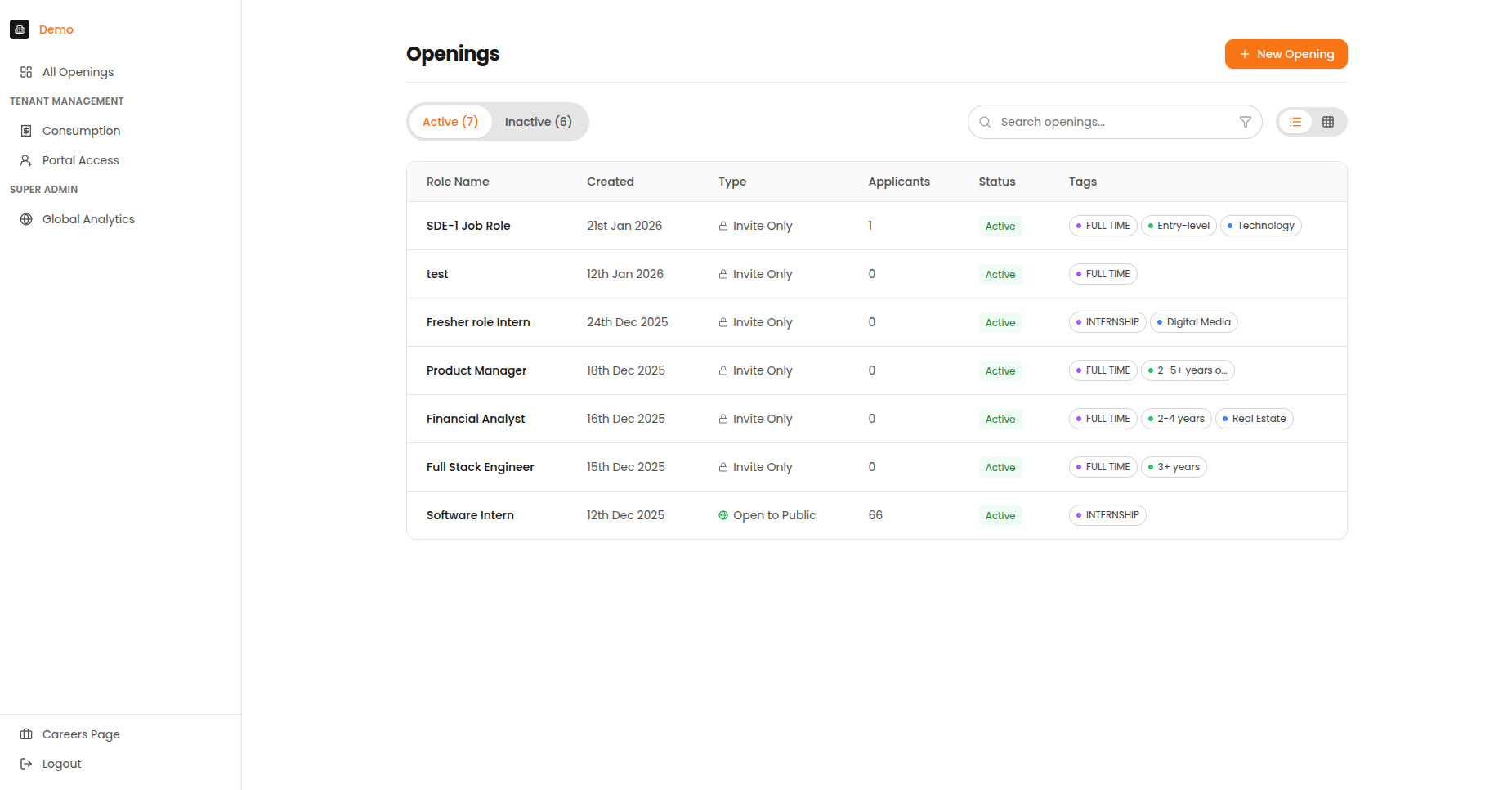
The Openings List page showing active openings with titles, visibility, applicant counts, and status indicators.
What You See
| Area | Description |
|---|---|
| Header | Page title, search bar, and "+ New Opening" button |
| Tab Bar | Switch between "Active" and "Inactive" openings |
| Job Cards/Rows | List of all your openings |
| Sidebar | Navigation to other sections |
Understanding Job Cards
| Element | Description |
|---|---|
| Job Title | The name of the position |
| Application Count | Number of candidates who have applied |
| Status Badges | Active/Inactive, Public/Private indicators |
| Created Date | When the opening was created |
| Last Activity | Most recent candidate activity |
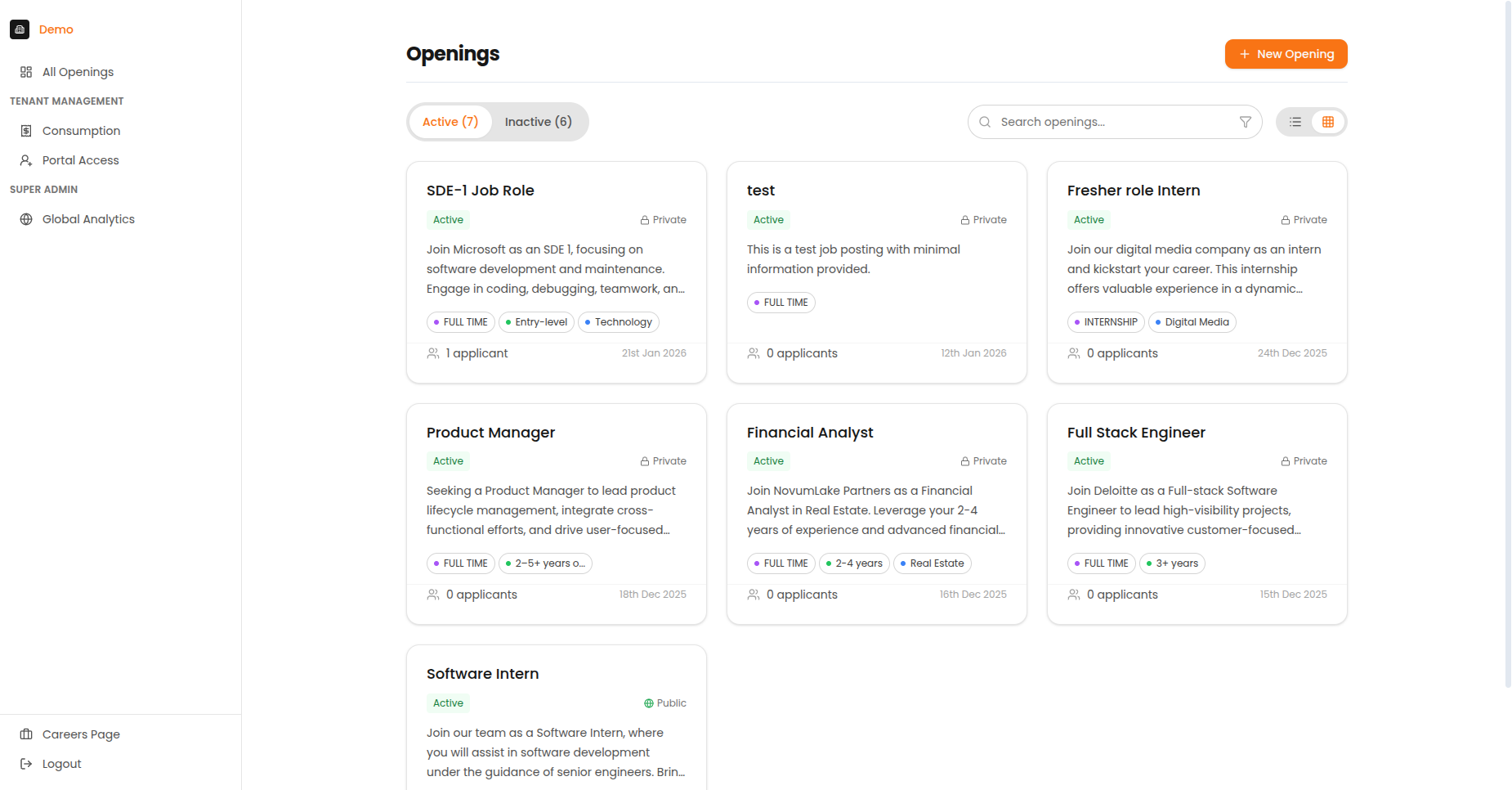
Card view showing openings with visual status indicators.
Creating a New Opening
Step 1: Click the New Opening Button
From the Openings List page, click the orange "+ New Opening" button in the top-right corner.
Step 2: Fill Out the Job Details
| Field | Description | Required? |
|---|---|---|
| Job Title | The name of the position (e.g., "Senior Software Engineer") | Yes |
| Hiring Manager | Person responsible for this hire | Optional |
| Department | Team or business unit | Optional |
| Job Description | Details about the role, requirements, and responsibilities | Yes |
Tips for the Description
- The AI will clean up formatting, so focus on content
- Include key requirements and qualifications
- Add information about the role's responsibilities
- Mention any specific skills or experience needed
Step 3: Set Job Parameters
| Field | Options | Notes |
|---|---|---|
| Location | City, Remote, Hybrid | Be specific for candidate filtering |
| Job Type | Full-time, Part-time, Contract, Internship | Affects expectations |
| Experience Level | Entry, Mid, Senior, Lead, Executive | Helps AI calibrate |
Step 4: Create the Opening
Click the "Create" button. Your new opening is set to "Invite Only" by default.
Sidebar Navigation
Global Navigation
| Item | Where It Goes |
|---|---|
| All Openings | Back to the Openings List |
| Consumption | Usage and credits (Account Admin only) |
| Organisation Users | Team management (Account Admin only) |
| Careers Page | Your public job listings |
Job-Specific Navigation
When you select an opening, additional options appear:
| Item | What It's For |
|---|---|
| Applications | See all candidates for this opening |
| Interview Design | Create/edit the interview plan |
| Analytics | Performance data and statistics |
| Email Templates | Manage automated emails |
| Settings | Opening visibility and status |
| Team Members | Control who can access this opening |
Careers Page
The Careers Page is your public-facing job board where candidates can browse and apply to open positions.
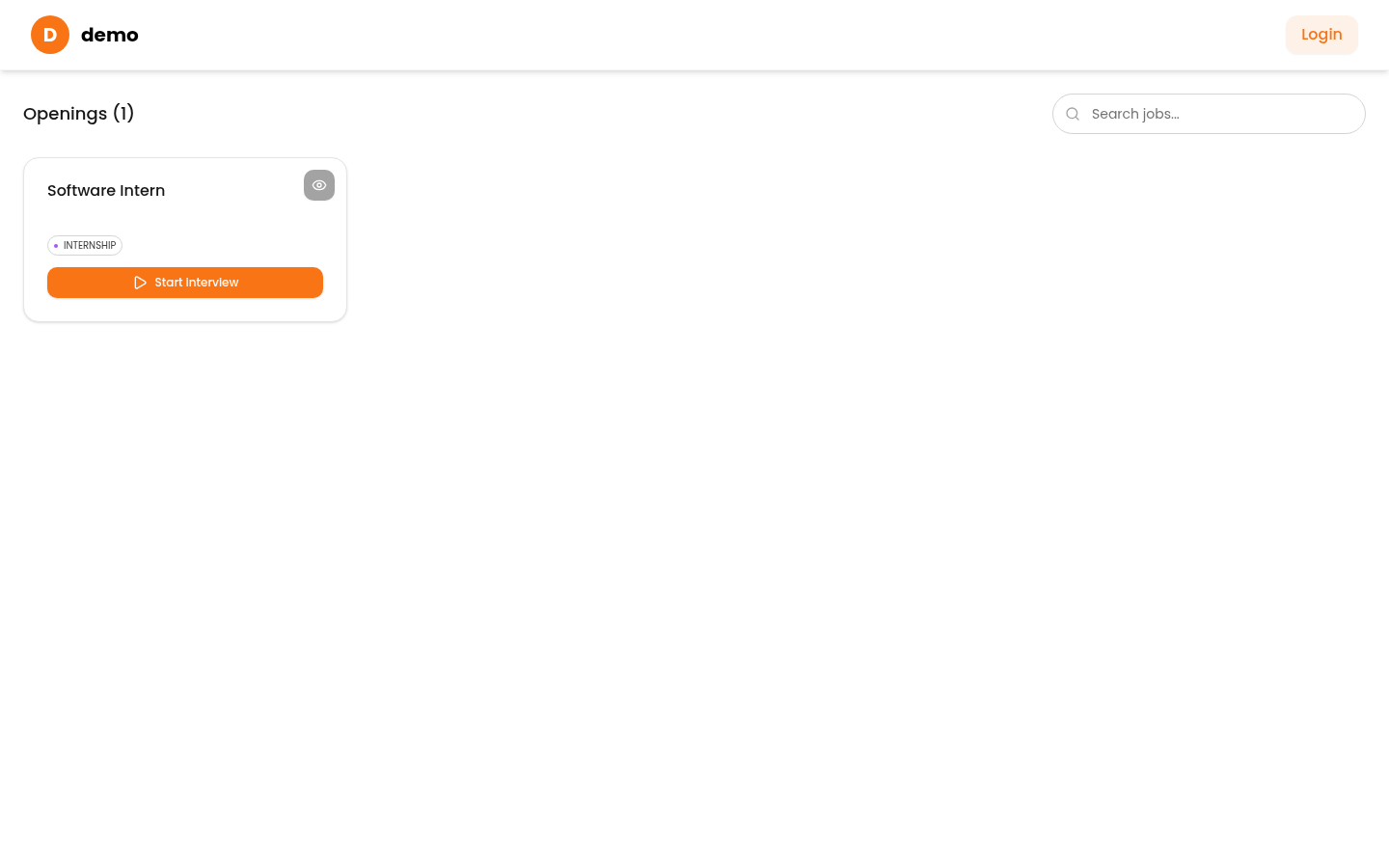
The public Careers Page showing available openings.
Next Steps
After creating an opening: