Roles & Permissions
Recruit41 uses a layered role system to give you precise control over who can do what — at both the organisation level and the individual job level.
Role Hierarchy at a Glance
graph TD
    A["Account Admin"] -->|automatic access to all jobs| B["Job Owner"]
    B --> C["Recruiter"]
    C --> D["Viewer"]

    style A fill:#fff7ed,stroke:#fb923c,color:#c2410c
    style B fill:#fff7ed,stroke:#fb923c,color:#c2410c
    style C fill:#faf5ff,stroke:#a855f7,color:#7e22ce
    style D fill:#eff6ff,stroke:#3b82f6,color:#1d4ed8
Higher roles inherit every permission of the roles below them.
Organisation-Level Role
Account Admin
Full organisational control across the entire platform.
| Area | What they can do |
|---|---|
| Jobs | Create jobs, configure settings, manage all job data |
| Users | Add, remove, and change roles for any user |
| Analytics | View consumption insights and all reports |
| Team | Automatic access to every job — no invitation needed |
Recommended for
HR administrators, heads of talent acquisition, platform owners.
Job-Level Roles
You assign job-level roles per job. These control what each team member can do within that specific job.
Job Owner
Full control over a specific job.
- Edit interview plans and scoring criteria
- Manage the job's team (add/remove members, change roles)
- Invite candidates and configure job settings
- View and export all candidate data
- Create new jobs (if they own at least one job)
Recommended for
Hiring managers, senior recruiters responsible for the role.
Recruiter
Day-to-day pipeline management.
- Invite candidates to interviews
- View candidate profiles and interview results
- Export candidate data
- View (but not edit) interview plans
Recommended for
Recruiters, sourcers, coordinators managing candidate flow.
Viewer
Read-only access for stakeholders who need visibility.
- View candidate profiles and interview results
- Export candidate data
- Read-only — inviting candidates, editing plans, and changing settings require a higher role
Recommended for
Hiring team observers, department leads, external stakeholders.
Permission Matrix
The table below shows exactly which permissions each role has.
| Permission | Account Admin | Job Owner | Recruiter | Viewer |
|---|---|---|---|---|
| View candidates | ||||
| Export data | ||||
| Invite candidates | ||||
| Edit interview plan | ||||
| Manage team | ||||
| Job settings | ||||
| Create jobs | ||||
| Manage org users | ||||
| View analytics |
In-app Role Guide
You can view this matrix at any time inside the platform by clicking the Role Guide button on the Organisation Users or Team Members page. It includes a cards view and a side-by-side comparison view.
How Roles Work Together
Organisation + Job levels
A user's access depends on two things: their organisation role and their job-level role.
| Organisation role | Job-level assignment needed? | Result |
|---|---|---|
| Account Admin | No — they get automatic full access to all jobs | Full control everywhere |
| Member (non-admin) | Yes — must be added to each job | Only sees jobs they are assigned to |
Key point
Members who are not assigned to any job will not see any job data. Always add team members to the openings they need to work on.
Role Assignment Rules
Who can assign which roles:
| Your role | You can assign |
|---|---|
| Account Admin | Job Owner, Recruiter, Viewer |
| Job Owner | Recruiter, Viewer |
| Recruiter | — (cannot assign roles) |
| Viewer | — (cannot assign roles) |
Using the Role Guide
The platform includes a built-in Role Guide to help your team understand roles at a glance.
Accessing the Role Guide
- Go to Organisation Users (for organisation roles) or a job's Team Members page (for job roles)
- Click the Role Guide button in the top-right area
Cards View
The default view shows each role as a card with its description and key permissions — ideal for quick reference.
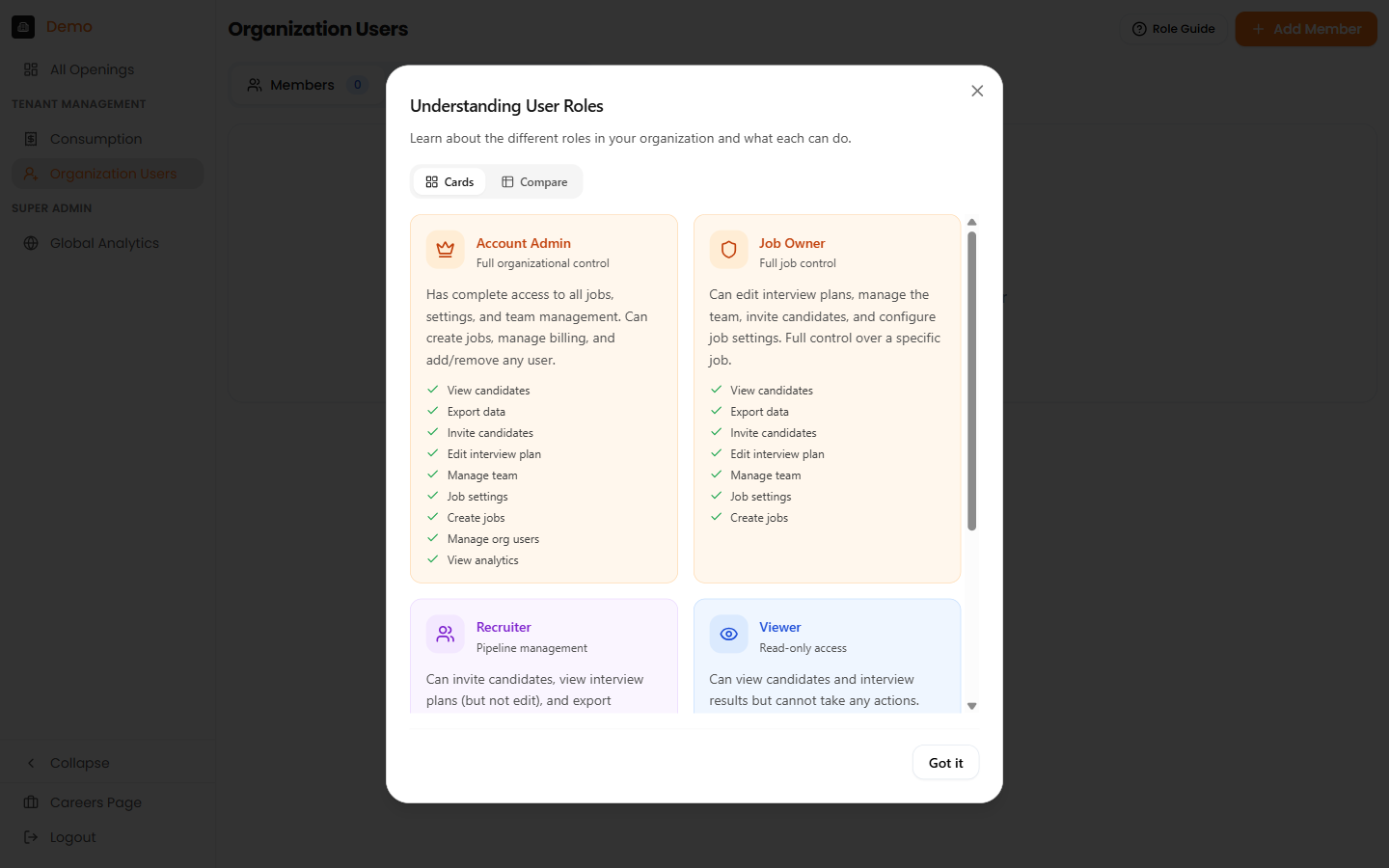
The Role Guide in cards view, showing all roles with their descriptions and permissions.
Compare View
Switch to the Compare tab to see a side-by-side permission matrix — useful for deciding which role to assign.
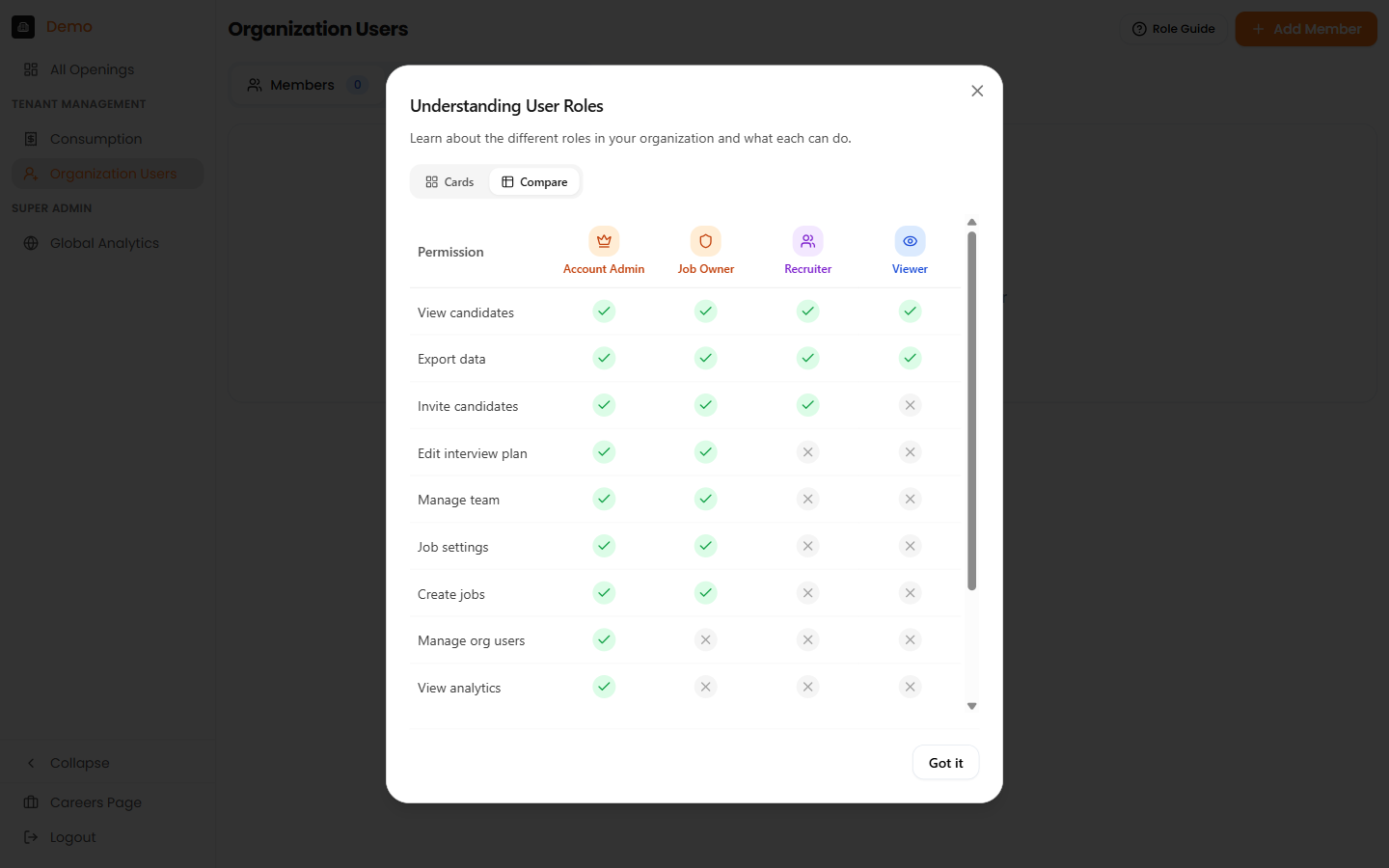
The permission matrix view lets you compare roles side by side.
Job-Level Role Guide
When accessed from a job's Team Members page, the Role Guide shows only the three job-level roles (Job Owner, Recruiter, Viewer) — without the Account Admin, since it is an organisation-level role.
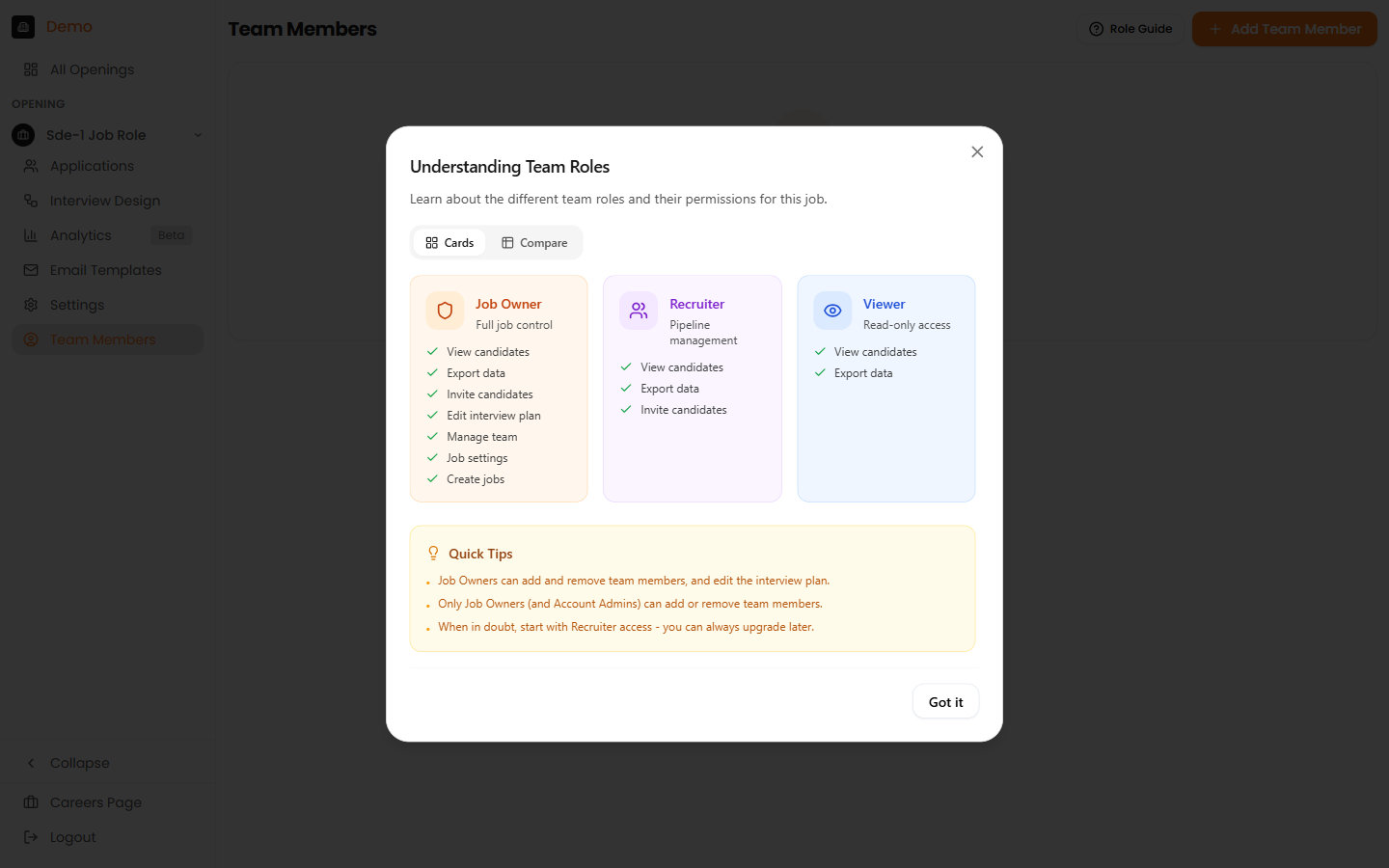
The Role Guide in job context shows the three job-level roles with Quick Tips for team management.
Managing Organisation Users
Only Account Admins can manage organisation-level users.
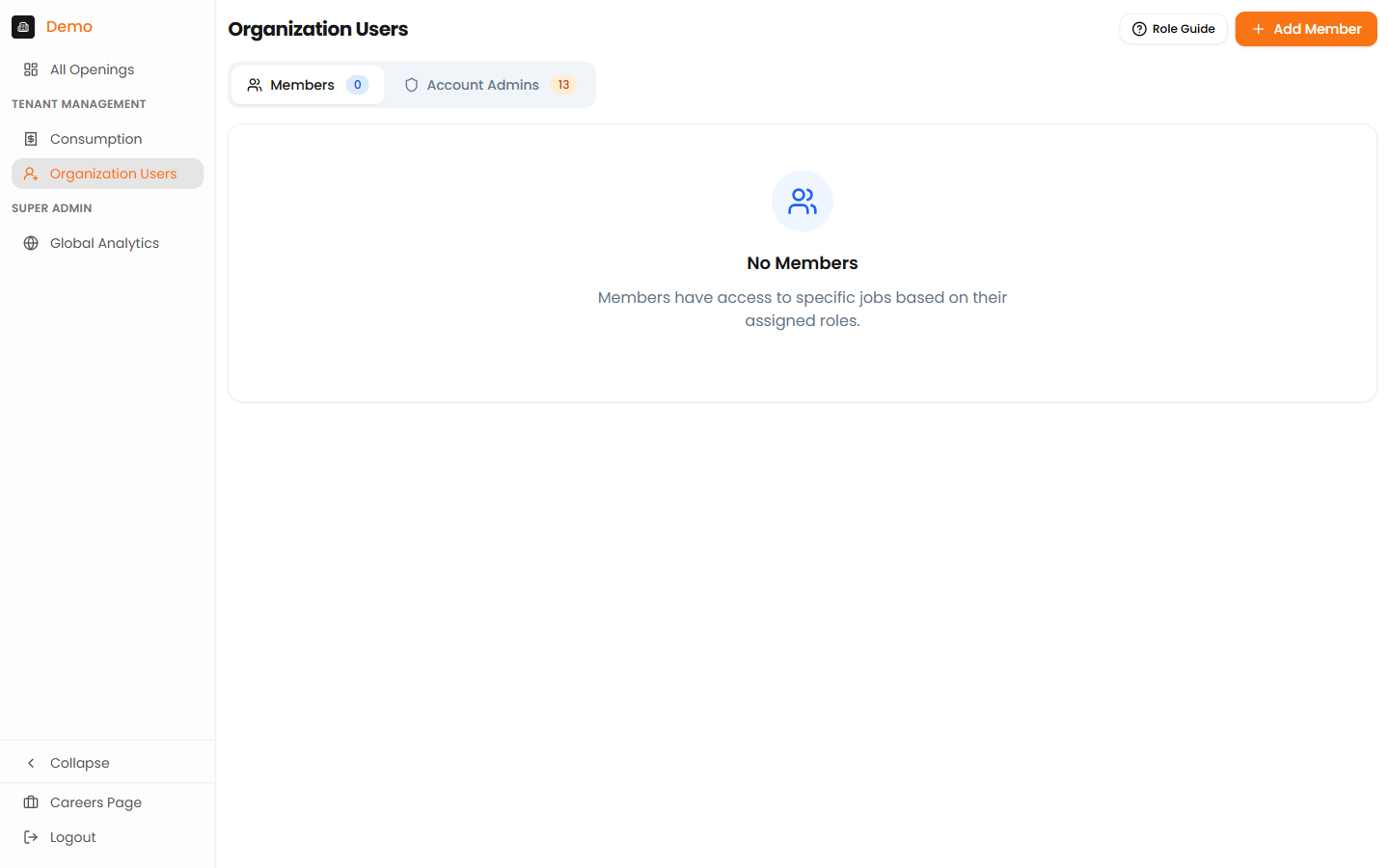
The Organisation Users page showing Members and Account Admins tabs, with the Role Guide and Add Member buttons.
Adding a User
- Go to Organisation Users in the sidebar
- Click "Add User"
- Enter the user's email address
- Select their organisation role (Account Admin or Member)
- Click "Save"
Changing a User's Organisation Role
- Go to Organisation Users
- Find the user in the list
- Click on their current role
- Select the new role
- Confirm the change
Warning
Be careful when removing Account Admin access — ensure at least one Account Admin remains on the account.
Managing Job Team Members
Job Owners and Account Admins can manage a job's team.
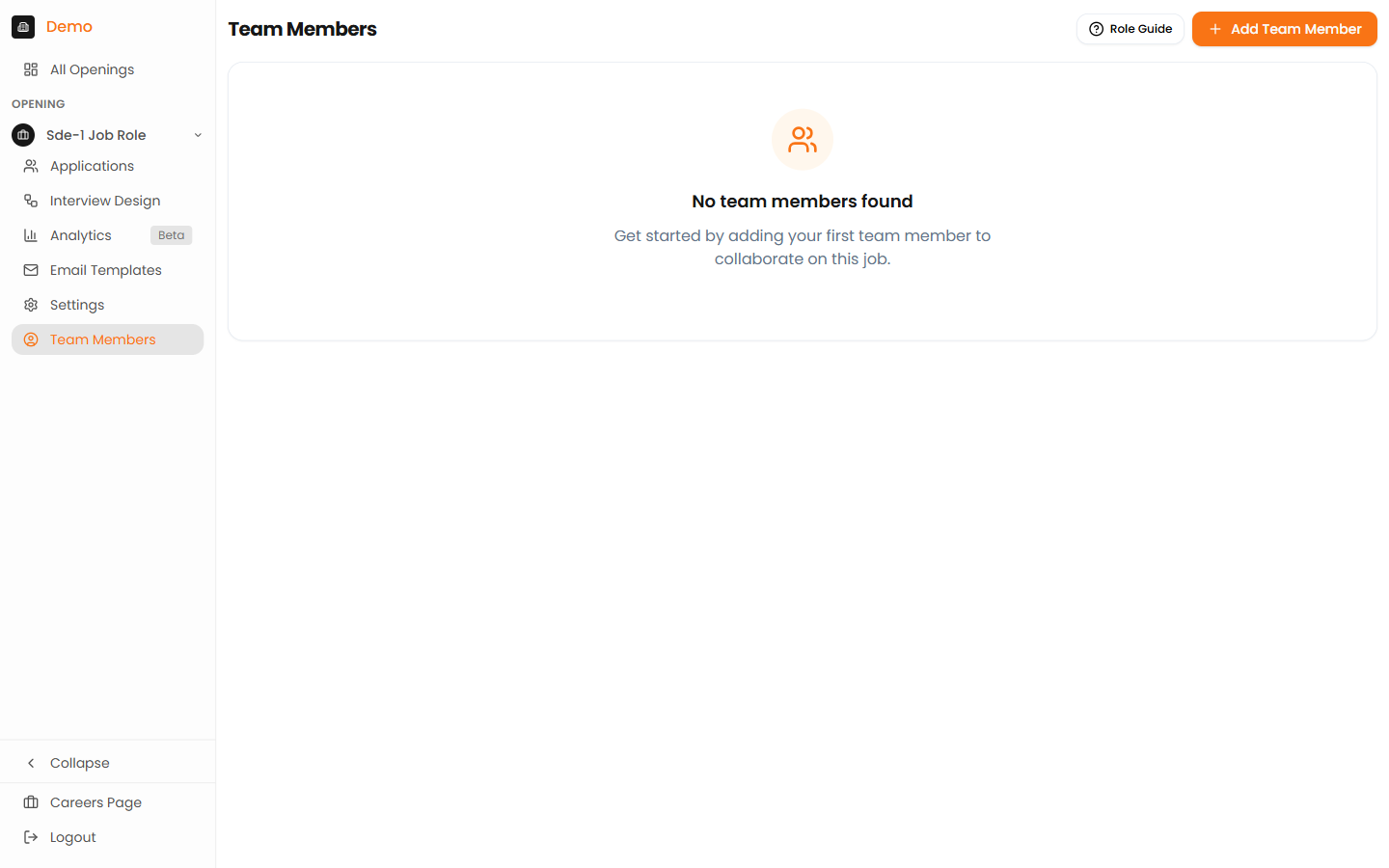
The Team Members page for a specific job, with the Role Guide and Add Team Member buttons.
Adding a Team Member to a Job
- Open the job and go to the Team Members tab
- Click "Add Member"
- Search for the user by name or email
- Select their job role (Job Owner, Recruiter, or Viewer)
- Click "Add"
Changing a Team Member's Job Role
- Open the job's Team Members tab
- Find the team member
- Click on their current role to change it
- Select the new role
Removing a Team Member
- Open the job's Team Members tab
- Find the team member
- Click "Remove"
- Confirm the action
Quick Tips
Best practices for role assignment
- Account Admins get automatic access to all jobs — no need to add them individually to each job.
- Members only see jobs they are explicitly assigned to.
- When in doubt, start with Recruiter access — you can always upgrade later.
- Only Job Owners and Account Admins can add or remove team members from a job.
Migrating from the Previous Role System
If your account was set up before the current role system, your existing roles have been automatically migrated:
| Old role | New role |
|---|---|
| Tenant Admin | Account Admin |
| Tenant User | Member (with existing job assignments preserved) |
No action is required — all existing permissions and job access have been preserved.
FAQ
What is the difference between Account Admin and Job Owner?
Account Admin is an organisation-level role with access to all jobs and user management. Job Owner is a job-level role with full control over a specific job but no organisation-wide privileges.
Can a Recruiter create jobs?
A Recruiter gains the ability to create new jobs once they are also a Job Owner on at least one job.
What happens if I don't assign someone to a job?
Non-admin users who are not assigned to a job will not see it. Only Account Admins have automatic access to every job.
Can I have multiple Account Admins?
Yes. You can have as many Account Admins as needed, but we recommend limiting admin access to those who truly need it.
What happens when someone leaves the company?
Remove their access immediately via Organisation Users. Their historical actions remain in the audit log for compliance.