How to Set Up Your Account
Configure your account and add team members to get started with Recruit41.
Adding Team Members
Step 1: Navigate to Organisation Users
- Click "Organisation Users" in the sidebar under Tenant Management
- The Organisation Users page loads showing all current members
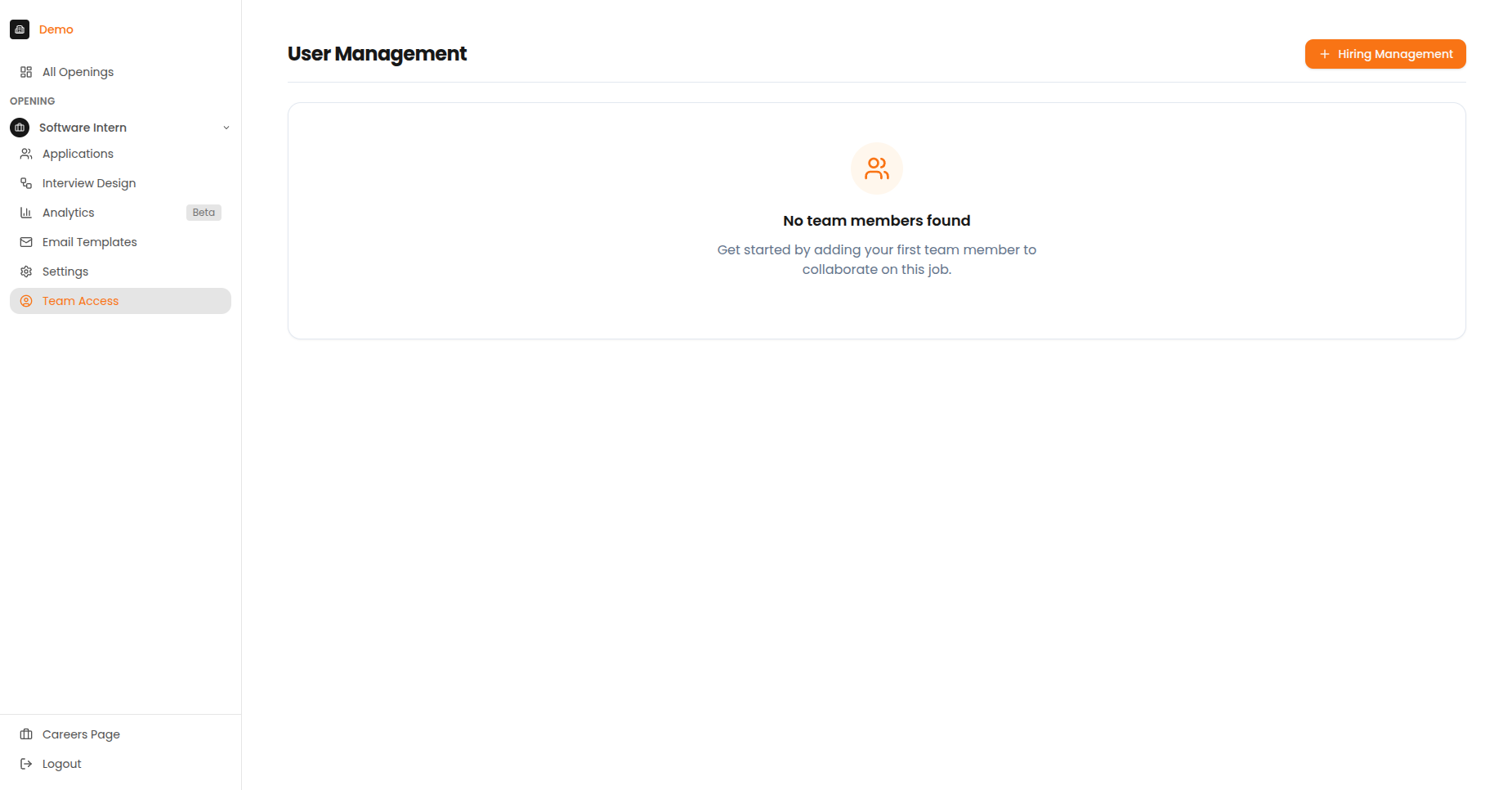
The Organisation Users page for managing team members.
Step 2: Click Add Member
- Click the orange "Add Member" button
- The "Add Member" dialogue opens
Step 3: Enter Member Details
| Field | Description | Required |
|---|---|---|
| User Email | Enter the exact email address | Yes |
| Name | Enter their full name | Optional |
| Department | Select their department | Optional |
Step 4: Assign the Right Role
- Click the "Role" dropdown menu
- Read the role descriptions
- Select the appropriate role:
- Account Admin - Full access to all openings and settings
- Member - Access only to assigned openings
- Click "Add Member"
The user will receive an email invitation to join the platform.
Common Errors and Solutions
| Error | Solution |
|---|---|
| "Email already exists" | User is already a member - find them in the list |
| "Invalid email format" | Check the email address for typos |
| "Permission denied" | You may need Account Admin access to add members |
Key Terms Glossary
Familiarise yourself with these common terms:
| Term | What It Means |
|---|---|
| Opening | A position you're hiring for |
| Application | A candidate's record for a specific opening |
| Interview Design | The setup of your interview (sections, questions, scoring criteria) |
| Candidate | Someone taking or who has taken an interview |
| Section | A part of the interview (e.g., "Introduction", "Coding Challenge") |
| Interview Monitoring | Checks during the interview to ensure fairness (camera, screen sharing) |
| Visibility | Whether an opening is open to everyone (Public) or by invitation only (Private) |
| Scoring Criteria | The standards used to score and compare candidates |
Next Steps
Once your account is set up: