How to Upload Candidates Using CSV
This guide explains how to invite candidates to interviews using the bulk invitation feature. You can efficiently invite multiple candidates by uploading a CSV (a spreadsheet file you can create in Excel or Google Sheets) with their information.
Step-by-Step Process
1. Prepare Your CSV File
Your CSV file must contain this required column:
email- Valid email address
Optional columns:
first_name- Candidate's first namelast_name- Candidate's last name
Example CSV format:
email,first_name,last_name
john.doe@example.com,John,Doe
jane.smith@example.com,Jane,Smith
alex.johnson@example.com,Alex,Johnson
2. Access the Invitation Manager
- Go to your opening in the platform → Click on Applications
- Click on the "Invite Candidates" button on the right side (or in the centre of the screen if inviting candidates for the first time)
- A page/form will open for the invitation manager
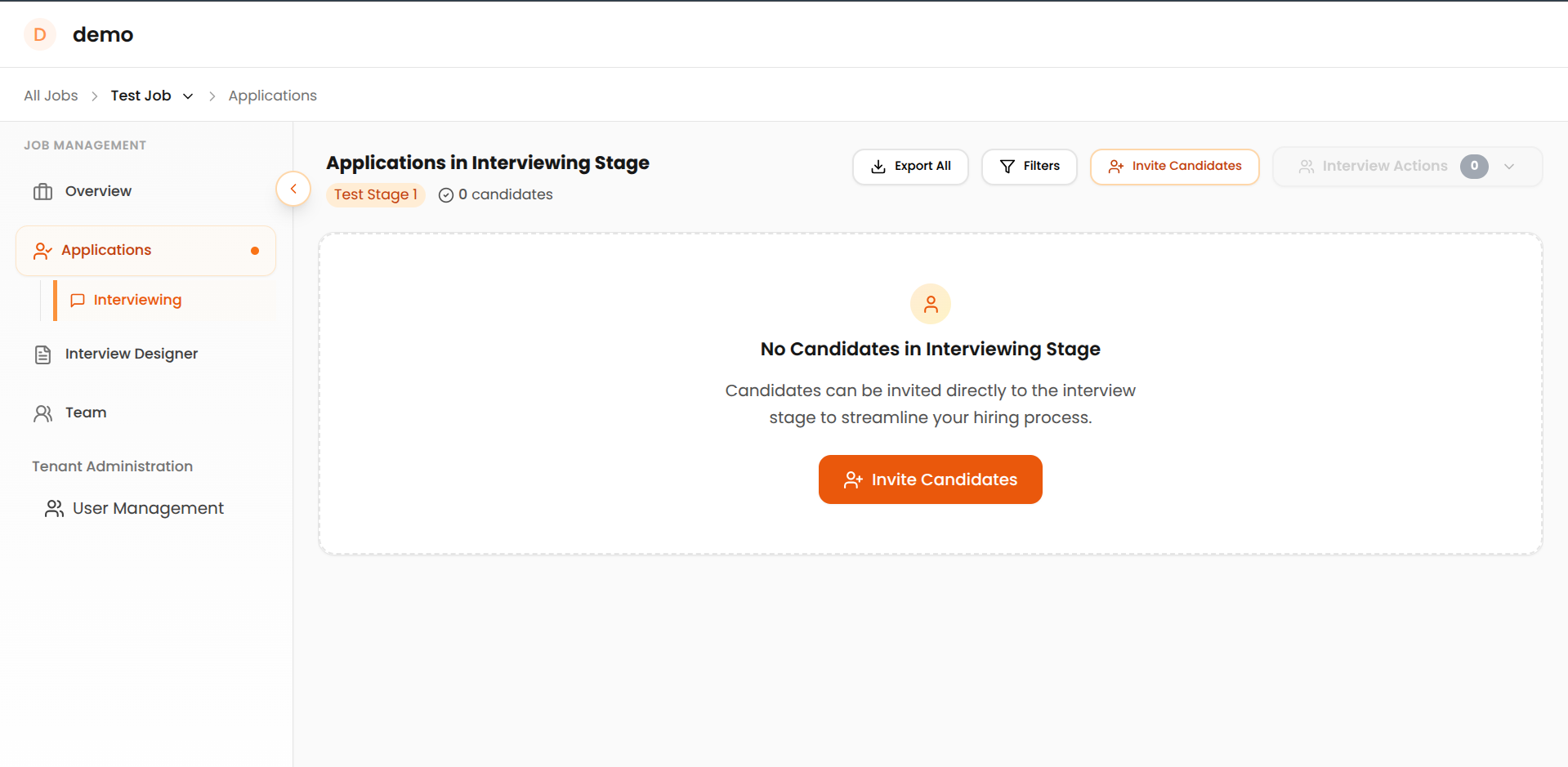
Click the "Invite Candidates" button to access the invitation manager
3. Upload Your CSV File
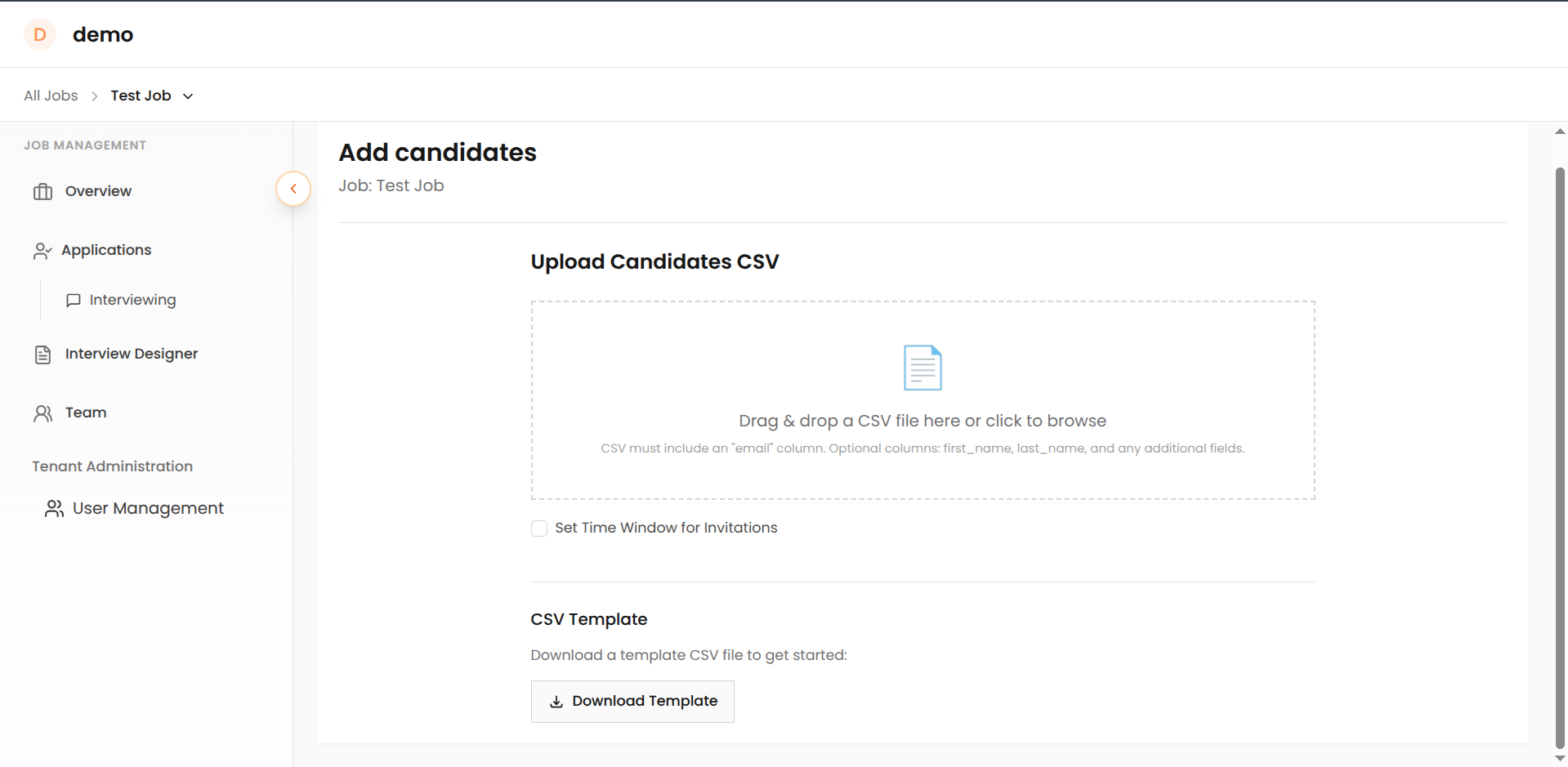
You can upload your CSV file by:
- Drag & Drop: Drag your CSV file directly into the upload area
- File Selection: Click "Select File" to browse and choose your file
4. Data Validation & Processing
The system automatically validates your data:
- Email Validation: Checks for valid email format
- Duplicate Detection: Identifies duplicate email addresses
- Data Completeness: Verifies required fields are present
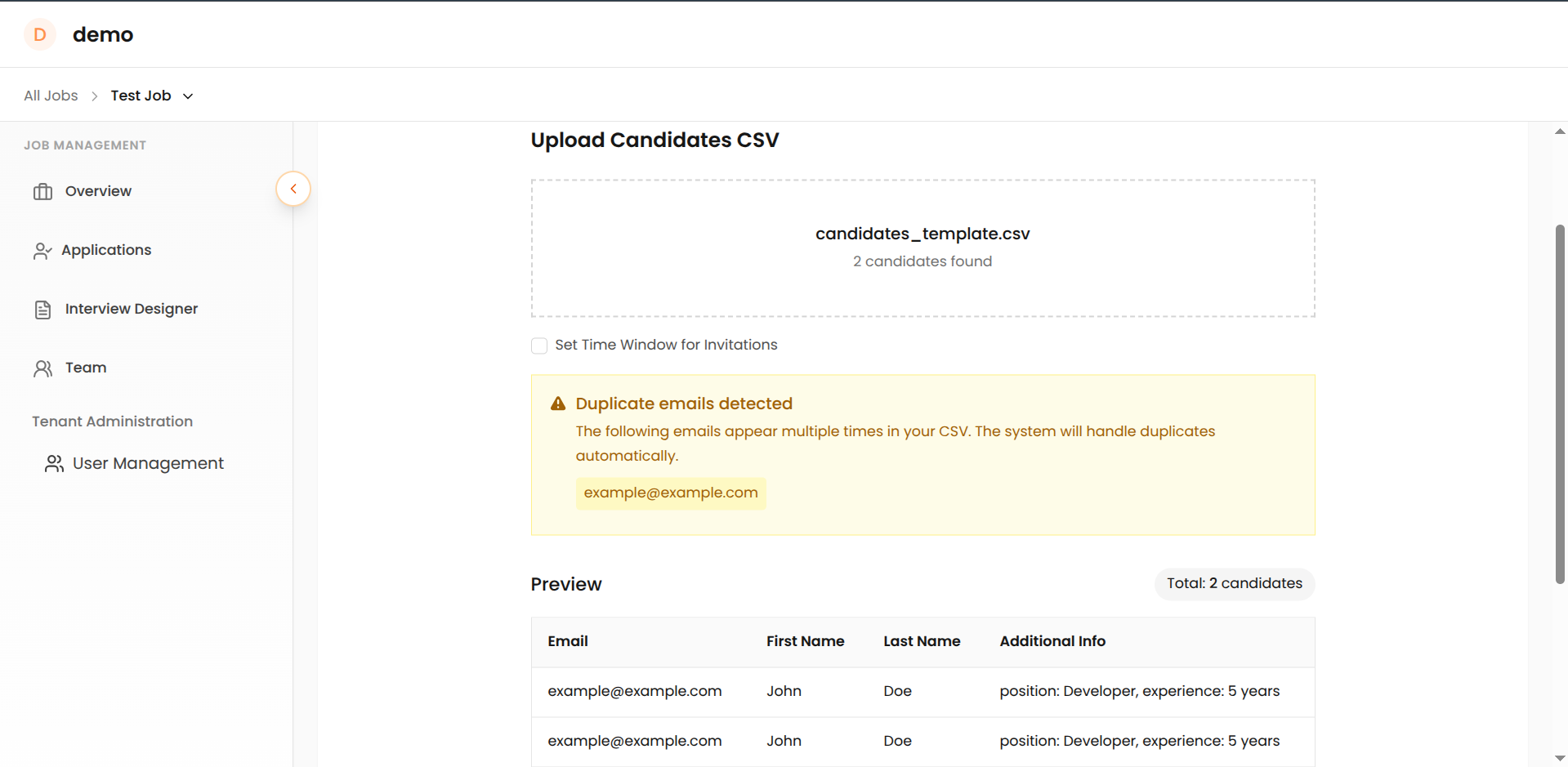
5. Configure & Download
- Preview: Review candidate list and validation status
-
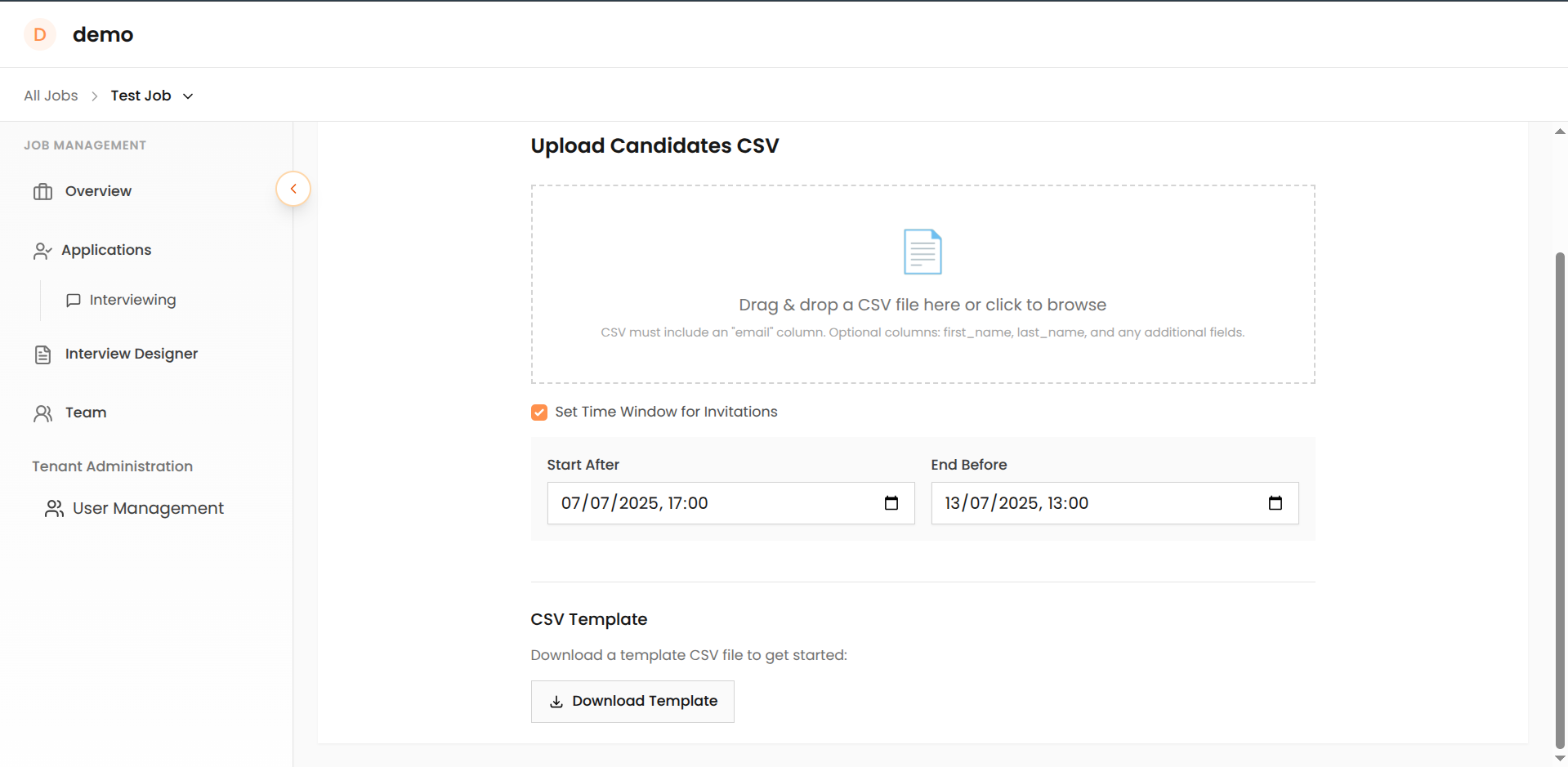
Set Time Windows (Optional): Click the "Set Time Window for Invitations" checkbox to configure when interviews become available to candidates and when invitation links expire. Leave unchecked for immediate activation with default expiration.
- Start After: Sets when candidates can begin accessing their interview links
- End Before: Sets when invitation links expire and become inaccessible
-
Process: Click "Upload Candidate" to generate links
- Download: Get CSV file with candidate application links for email distribution
For Large Uploads
Process candidates in batches of 200-300 for optimal performance.
Troubleshooting Guide
Invalid CSV format error
Solution: Save file as CSV, not Excel (.xlsx). Ensure comma-separated values with proper headers.
Email column not found
Solution: Rename your email column to exactly email (lowercase) in the first row.
Invalid email format errors
Common Issues: Missing @ symbol, spaces, invalid domains (.con vs .com), special characters Solution: Review and correct flagged email addresses or remove invalid entries.
Duplicate email detected
Meaning: Same email appears multiple times. The system processes only the first occurrence. Solution: Remove duplicates before uploading.
Missing required fields
Solution: Check for empty cells in email, first_name, or last_name columns. Fill missing data or remove incomplete rows.
Upload/processing failures
Solutions:
- Check internet connection
- Split large files into smaller batches (100-500 candidates)
- Close file in Excel/Sheets before uploading
- Try different browser or refresh page
- Test with smaller file first (5-10 candidates)
Support and Additional Resources
Need help with candidate uploads? We're here to assist you.
Email Support: support@recruit41.com - Get expert help with technical issues or questions about the upload process.
Related Documentation:
- Recruiter Guide - General recruiter guide and platform overview